
Blog

Recent posts
SEARCH RESULTS FOR: Movie
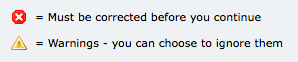
Ideally I like to see the Problem Reporter empty every time I finish a design, but it isn't always, and you're probably the same. By default, any errors you can't ignore are listed first in the Reporter - the ones with the little red and white "X" against them. We can't make your album until they're corrected, so PJ won't let you send your order until they are. The items with the little yellow warning triangle you can ignore if you like. They're sorted into spacing issues, then sizing issues, and lastly alignment issues. Obviously, you want to take care of your red issues first. Complete your album To View More >>
This entry was posted in by Admin
If you haven't noticed, when you upload your images they can do so at different speeds, and then show up in Workspace out of order. So how do we "sort" this out? Well there are two parts to it. Are you wanting to sort your Collection in Workspace, or do you want to change the order your images appear on your website, eg in a slideshow? Sorting the Collection. Just above your thumbnail images there are options to sort by file name, date or manually. To change the order manually, just drag the image thumbnail to a new position. Pretty straightforward stuff. Sorting for your website. This takes a To View More >>
This entry was posted in by Admin
If you've already got a website, do you need a Workspace site as well? Workspace is a really handy platform for selling your photography, designing and proofing your albums, and sharing your work online to build your business. So yes, we think Workspace will be a great business asset, especially since we make it all about YOU. Your brand is the star of the show. Instead of sending people to a generic Queensberry/Workspace corporate site to view their albums and images, Workspace lets you 'brand' the web pages and even integrate it completely with your existing site. This movie explains how to To View More >>
This entry was posted in by Admin
We're working hard on systems to make designing, ordering and printing your albums easier. The latest thing we've done is commission PJ to add some features to Remix just for us. They’re in the latest final release - v1.2 - and they’re awesome: “Smart filtering” to avoid invalid selections when you order an album. A simpler version of LabFTP to use with Remix – no asking dumb questions when PJ already knows the answers. Dramatically better handling of Duo albums (here’s a movie , but really, it’s so simple you probably don’t need it). Remix now handles “cut-in” apertures! To View More >>
This entry was posted in by Admin
As they say it's good to share, and that is one of the fundamental reasons why Workspace was created. We wanted to give you the opportunity to share your images with your clients in a fast simple way, whether you're selling them with our shopping cart, giving clients a way to to choose the images they'd like in their albums, or simply getting more people on your website. So select your Collection and click the share button. Brilliant stuff!! But wait, there's more. We're talking about sharing your images, not giving them away, so you need to think before you share. For example, how many images To View More >>
This entry was posted in by Admin
Let's face it, if you don't import images into Workspace then not a lot is going to happen. Unless you're just using it to proof the albums you've designed in Photojunction, that is. So let's start at the Dashboard, and click New Event. The first thing Workspace will ask for is an Event name. This could be your clients' names. Click Create Event. Once you have done that, click Add Images To Event, and browse for your files. The maximum size for a file is 28MB, and it needs to be a JPEG or TIFF. But choose a size that's suitable for what you want to use it for – no bigger, or you'll be using To View More >>
This entry was posted in by Admin
When you log in to Workspace for the first time, all you need to do to start playing is click the big New Event button at the top of the Dashboard screen, and import some images. But if you really want to see what Workspace can do, I suggest setting up your website first. In the movie, Stephen and Ian (Stephen actually - Ian just gets to interrupt occasionally) will give you an idea of how your site might look. It's so simple you can do it in a few minutes, so why not do it first? Fooling around in Workspace will be a lot more rewarding if you do. 1. Click the Settings button on the Dashboard To View More >>
This entry was posted in by Admin
By default Photojunction keeps its main database and your template and project files in a folder called "Photojunction" on your computer. You can move the folder to a new location, but by default you'll find it here: Windows Vista and Windows 7: C:Program DataPhotojunction Windows XP: C:Document and SettingsAll UsersApplication DataPhotojunction Mac: Macintosh HD:Users:Shared:Photojunction: If you're shifting to a new computer, just move the ENTIRE FOLDER to the equivalent location on the new machine. Some people may have moved their PJ Project files (client/event/album data) to a different location. To View More >>
This entry was posted in by Admin
Hi All A quick update about the upcoming release.... (hit play) If you can't be bothered watching the movie just remember we live by our new saying... "If we're going to bug you it had better be for a good reason!" Cheers, Danny To View More >>
This entry was posted in by Admin


