
Blog

Recent posts
SEARCH RESULTS FOR: Cut-in
We're delighted to announce that we're introducing Stripe as an alternative Workspace payment platform, alongside PayPal. Introducing Stripe means you can now activate a standard credit card form at checkout, and also get your payouts faster. However the two platforms interact with Workspace quite differently, and it's important to understand how… Stripe and PayPal are: — How you pay for your wholesale purchases from Queensberry. — How your clients pay for purchases in your retail shopping cart. — How Workspace pays you the profits To View More >>
This entry was posted in Product Updates by Ian Baugh

A few weeks ago we gave you a sneak peek at a major upgrade to our Client Galleries, designed to make it easier than ever for wedding and portrait photographers to sell print products to their clients. It' s based on what we've learned from the success of Print Shop, our other online sales platform. We're delighted to announce that it's now live, and accessible on all paid Workspace plans. Here we'll step you through the main features, but first, we're often asked — why do we offer two platforms? Because the customers are totally different, and so To View More >>
This entry was posted in Product Updates by Ian Baugh
There are lots of ways to make money as a landscape, travel, adventure, wildlife or fine art photographer. Shooting for a publication, for example, or selling through galleries or other commercial spaces such as tourist stops or cafes. Or working with clients to produce product or marketing images. Or décor for commercial or hospitality spaces. But over the course of your career you'll likely build a library of images that are yours to sell over and over again — if you could only work out how, without turning yourself into a shopkeeper! More opportunities today Today we're free to To View More >>
This entry was posted in Marketing by Alexandria Baugh

Typography plays an important role in the overall look of websites, so it's no surprise that one of the common things people want to do in Workspace is change fonts. Workspace offers a range that you can select from in the text widgets (as in the graphic) but what if you want something completely different? This tutorial will explain what to do. Warning! This will get a bit geeky, so if you're not comfortable coding CSS and HTML, contact us and for a small charge we can arrange to do the work for you. Otherwise get someone else with the necessary experience, as we To View More >>
This entry was posted in Product Updates by Alexandria Baugh

Some Workspace users have more than one account (separate brands for their wedding and portrait businesses, for example). Some busy studios have several people working in the same Workspace account (photographers, designers, sales people, for example). And some users do work for the owners of multiple Workspace accounts (album designers, editors, site managers, for example). In all those scenarios the Workspace Accounts and Users function makes life very easy. Save 40% on your annual Workspace subscription. Just quote WS40 when subscribing or updating. To View More >>
This entry was posted in by Victoria Hollings

If you're wondering how to upload your logo to Workspace, read on! We'll explain how to create a favicon too. The graphic shows how we added our logo to the queensberry.com website (which is built in Workspace). 1. Select SETTINGS from in the main navigation. 2. Select Appearance from the dropdown menu. 3. Click on the Logos tab. 4. Click the Upload logo button. Save 40% when subscribing, upgrading or renewing your Workspace annual plan. Conditions apply. That's all there is to it. Your logo will be displayed full size (a 200px image will appear smaller than a 500px To View More >>
This entry was posted in by Victoria Hollings
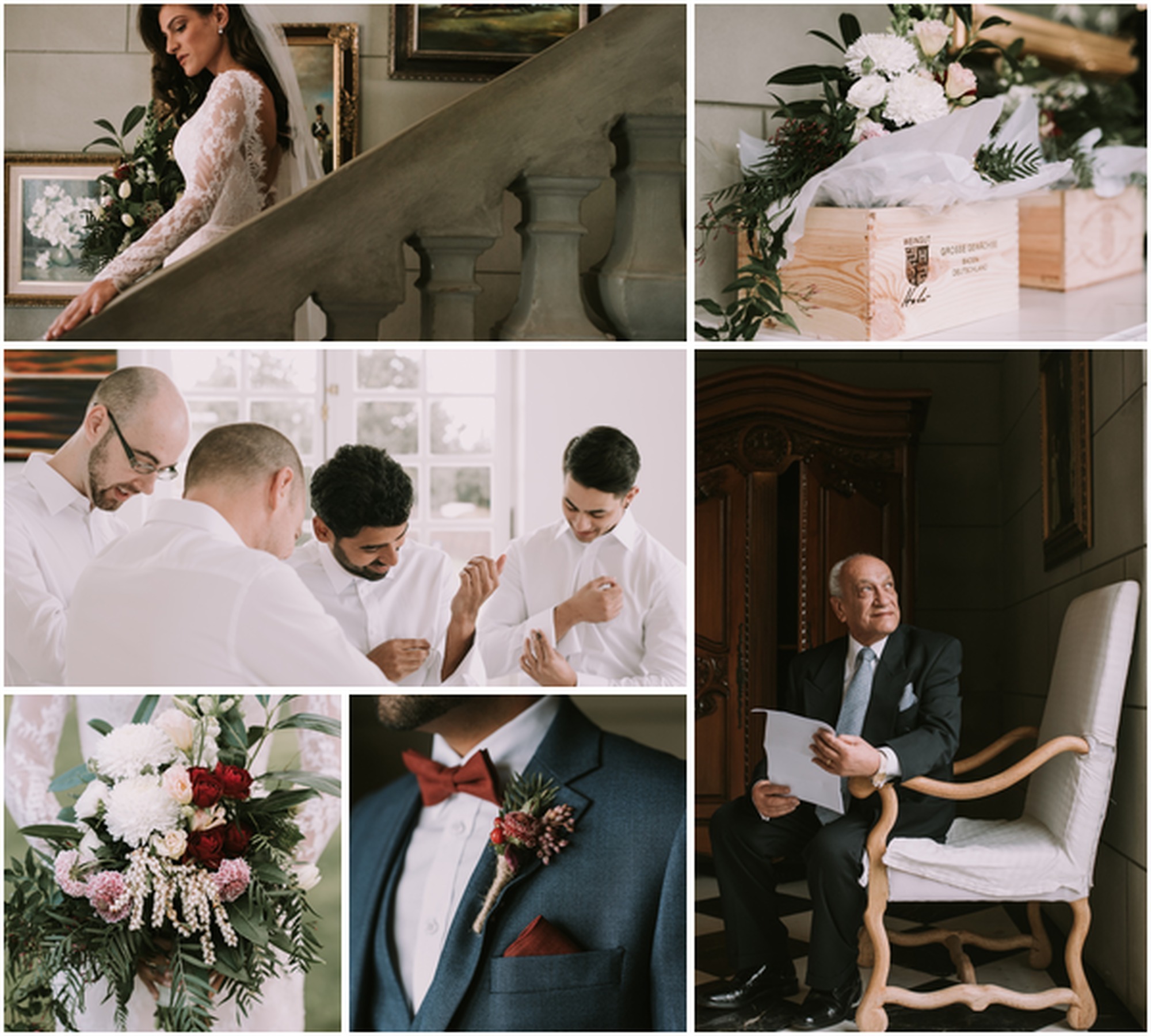
Your blog is a great way to share your work and connect with potential new clients. It's a tool for drawing people in from Facebook and other social media sites, for keeping your site fresh, interesting and ever-changing, and for keeping your image galleries and work in front of people. Share your ideas and interests too! It’s a great way make your website feel more personal. If people can get an idea of the type of person you are, they are more likely to feel comfortable and trust you. What you talk about on your blog is important. One advantage you have over other bloggers To View More >>
This entry was posted in by Victoria Hollings

Our retail shopping cart is designed to help you sell your work anywhere, anytime. This upgrade makes it easier for your clients to purchase on small devices. In this upgrade we've simplified our mobile interface, introduced a simpler approach to the icons used, and updated our product images to ensure it's quick and easy to purchase products. “Quick views” and intuitive call-to-action buttons mean more purchases in the shopping cart cart, less in the “too-hard basket"… and more sales for you. Try out the mobile shopping To View More >>
This entry was posted in by Alexandria Baugh

I've really been looking forward to multi-user login to Workspace. Well it's here and it's fantastic. But because it's meant we've had to change the way you log in, some people have found it a bit confusing - so let me explain why it's so cool, and how it works. Until now the only way to give someone access to your account has been to share your login details. It's very common but it's not good practice … and sharing your login means they can do everything that you can in your account. But suppose you have a staff member or second shooter you'd like to upload images and edit events - and nothing To View More >>
This entry was posted in by Admin

Ok it's not the same as getting a new iPhone for Christmas but for the inner Photojunction tech support geek it gets pretty close. Same with all you power users out there I reckon. For me the big one is the first... A new shortcut for choosing standard aperture sizes Instead of selecting an aperture size from the pop-up menu you can now use keyboard shortcuts to increase or decrease an aperture to the next standard size. • For Mac OSX Command+Shift+I and Command+Shift+K • For Windows Control+Shift+I and Control+Shift+K. Next we have not one, not two but three new right-click functions [caption To View More >>
This entry was posted in by Admin


