
In Workspace you can deliver video in a way that feels as considered as your photography.
- Upload your films directly to Workspace or add them via a direct MP4 link.
- Connect them seamlessly to your galleries, or embed them on your website.
- Present full feature films, highlights or clips (e.g. social media content) alongside your images, so your clients can experience them in one place.
- Enable download or purchase of videos, giving you full control over how your work is shared and sold.
Video is available across all plans, with each plan including a set storage allowance. Connecting videos to galleries requires a Pro plan or higher, while embedding videos on your website is available on Pro+.

Uploading to the Media Library
- Go to Website → Media Library.
- Click Upload Video in the top right-hand corner.
- Drag and drop your video file, or click Browse Files to select it from your computer.
Adding a Video to a Gallery
- Go to the Dashboard.
- Open the gallery you want to add the video to, or create a new gallery.
- Click the cog icon to open Settings.
- Scroll to Embed Videos.
- Click + Add from Media Library or + Add URL.
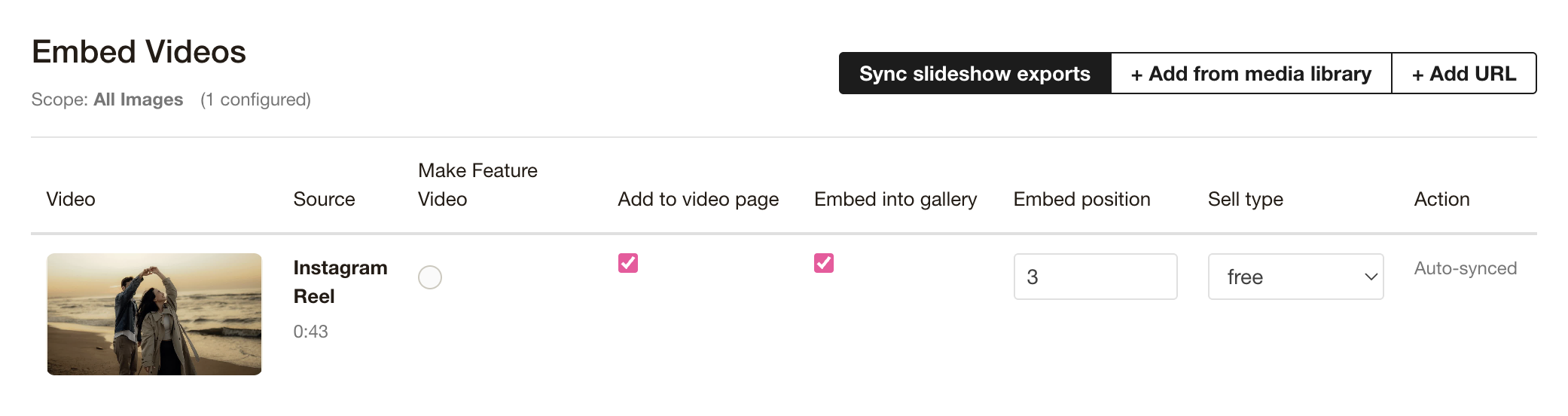
Video Settings Explained
Feature Video
Displays the video large at the top of the gallery when the client enters, along with a heading.
Video Page/ Section
Adds the video as a smaller thumbnail to a special video section. This is great if you're delivering a number of videos at once, e.g. different reels for the clients to use.
Embed into Gallery
Places the video within the image flow of the gallery.
Embed Position
Choose where the video appears — either randomly or after a set number of images.
Sell Type
Set how the video is offered:
- Pricing for Clip, Short Story, and Feature is configured in your price list.
- Select Free if there is no charge.
Adding a video via MP4 URL
If your video is hosted externally, you can add it using a direct MP4 link. Please note downloading and selling are not available for this feature.
- Go to the Dashboard.
- Open the gallery you want to add the video to, or create a new gallery.
- Click the cog icon to open Settings.
- Scroll to Embed Videos.
- Click + Add URL.
- Enter the title and paste the MP4 link.
- Click Save.
Embedding a Video on Your Website
- Go to Website → Website Pages.
- Edit the page where you want to add the video.
- Add a new widget and select Video.
- Choose your video source: Media Library (Pro+ only), YouTube or Vimeo.
- Configure your settings and click Save.
- Click Update Published Version to make the changes live.


